The Seagate? Backup Plus portable drive offers the mobility of a portable with the high capacity of a desktop drive. Under a sleek metal design lies up to 5TB of storagetwice the capacity of comparable 2.5-inch portable drives. This gives you the space to store your movie, music and photo collectionsand take them with you wherever you go. High-speed USB 3.0 and 2.0 connectivity offers plug-and-play functionality on your PC without the need of an external power supply. Install the NTFS driver for Mac?, and you can use the drive interchangeably between Windows and Mac computers without reformatting. Via the Seagate Dashboard software, you are provided with tools for local, mobile, cloud and social media backup. Run a one-click backup or schedule an automatic backup plan to protect your files in your Backup Plus portable drive at your convenience. Install the free Seagate Mobile Backup app on an iOS or Android mobile device to back up all of the pictures and videos from the device to your external drive or the cloud.
The Seagate? Backup Plus portable drive offers the mobility of a portable with the high capacity of a desktop drive. Under a sleek metal design lies up to 5TB of storagetwice the capacity of comparable 2.5-inch portable drives. This gives you the space to store your movie, music and photo collectionsand take them with you wherever you go. High-speed USB 3.0 and 2.0 connectivity offers plug-and-play functionality on your PC without the need of an external power supply. Install the NTFS driver for Mac?, and you can use the drive interchangeably between Windows and Mac computers without reformatting. Via the Seagate Dashboard software, you are provided with tools for local, mobile, cloud and social media backup. Run a one-click backup or schedule an automatic backup plan to protect your files in your Backup Plus portable drive at your convenience. Install the free Seagate Mobile Backup app on an iOS or Android mobile device to back up all of the pictures and videos from the device to your external drive or the cloud.
There are no live offers for Wacom Intuos Pro Medium with Pro Pen 2 right now. The all-time low we recorded was $19.12 on 31 May 2026. Set a price alert to hear when it's back in stock.
Prices last updated 5 Sept 2026.
Wacom Intuos Pro Medium with Pro Pen 2
The Seagate? Backup Plus portable drive offers the mobility of a portable with the high capacity of a desktop drive. Under a sleek metal design lies up to 5TB of storagetwice the capacity of comparable 2.5-inch portable drives. This gives you the space to store your movie, music and photo collectionsand take them with you wherever you go. High-speed USB 3.0 and 2.0 connectivity offers plug-and-play functionality on your PC without the need of an external power supply. Install the NTFS driver for Mac?, and you can use the drive interchangeably between Windows and Mac computers without reformatting. Via the Seagate Dashboard software, you are provided with tools for local, mobile, cloud and social media backup. Run a one-click backup or schedule an automatic backup plan to protect your files in your Backup Plus portable drive at your convenience. Install the free Seagate Mobile Backup app on an iOS or Android mobile device to back up all of the pictures and videos from the device to your external drive or the cloud.
The Seagate? Backup Plus portable drive offers the mobility of a portable with the high capacity of a desktop drive. Under a sleek metal design lies up to 5TB of storagetwice the capacity of comparable 2.5-inch portable drives. This gives you the space to store your movie, music and photo collectionsand take them with you wherever you go. High-speed USB 3.0 and 2.0 connectivity offers plug-and-play functionality on your PC without the need of an external power supply. Install the NTFS driver for Mac?, and you can use the drive interchangeably between Windows and Mac computers without reformatting. Via the Seagate Dashboard software, you are provided with tools for local, mobile, cloud and social media backup. Run a one-click backup or schedule an automatic backup plan to protect your files in your Backup Plus portable drive at your convenience. Install the free Seagate Mobile Backup app on an iOS or Android mobile device to back up all of the pictures and videos from the device to your external drive or the cloud.
Last updated at 09/05/2026 01:19:44
Wacom Intuos Pro Graphics Tablet - Black, Medium Pth660
Free delivery
Affiliate Disclosure: We may receive a small commission for purchases made through this link at no extra cost to you. This helps support our site. Thank you!
Wacom Intuos Pro Pen Medium Tablet - Black
Free delivery between Tue – Fri
Wacom Intuos Pro Pen Medium Tablet - Black
Free delivery between Tue – Fri
Wacom Intuos Pro Medium with Pro Pen 2
Free delivery between Mon – Tue
Wacom Intuos Pro Medium with Pro Pen 2
Free delivery between Tue – Fri
Wacom Intuos PRO PTH-660 Creative Graphics Drawing Tablet Medium Pro Pen 2
Free delivery between 8–15 Sept
Wacom Intuos Pro Creative Pen Tablet Medium
Delivery $15
Wacom Graphics Tablet PTH-660/K0-C, Intuos Pro Medium With Pro Pen 2 Tech Intuos Pro Medium With Wacom Pro Pen 2 Technology..
Delivery between Wed – Fri $17
originally posted on walmart.com
Drawing with a 13 inch screen works perfectly as the tablet size matches in that size range. No worries for larger size screens though! Just adjust your pen mapping in the Wacom Tablet Properties under the pen you're using, and adjust the screen area portion down to a size that fits! However, that will mean your cursor is now limited too in those set proportions you make. So your cursor will not reach the edges of the screen as you once were able too. You'll need to use a mouse for anyhting other than drawing then or the touch if you're on a laptop. You also have a second option if you wish, there is Precision Mode located as an option in a drop down menu when selecting a function for your pen button or one of the side buttons on the tablet under Tablet>Precision ... MoreDrawing with a 13 inch screen works perfectly as the tablet size matches in that size range. No worries for larger size screens though! Just adjust your pen mapping in the Wacom Tablet Properties under the pen you're using, and adjust the screen area portion down to a size that fits! However, that will mean your cursor is now limited too in those set proportions you make. So your cursor will not reach the edges of the screen as you once were able too. You'll need to use a mouse for anyhting other than drawing then or the touch if you're on a laptop. You also have a second option if you wish, there is Precision Mode located as an option in a drop down menu when selecting a function for your pen button or one of the side buttons on the tablet under Tablet>Precision Mode. It'll then show you a slider from: fine to ultra fine. Once these settings are selected, activating the hotkey you created for what preference you chose will place a shaded mesh over the screen and a clear open box near the cursor. Here you can draw without the twitchiness that a larger screen would impose on a smaller tablet. Depending on the level of fine to ultra fine you set will determine the open drawing box size and the level of sensitive your movements will have. Hopefully this was helpful! I just don't want anyone to get the wrong reason to not want this tablet because of some certain difficulties between monitor and tablet size differences. There are ways around this and it is worth giving this tablet a try because it has so many benefits over a screen drawing tablet. Good luck 😁
originally posted on walmart.com
The driver is slow, takes forever to get started and you need to restart the tablet each time after your desktop is awakened. I’ve only used my Wacom with my desktop. Beautifully packaged but has no case or protection once it’s out of the box. Setting it up isn’t difficult so long as you follow all the instructions; it will take at least 30 minutes for a very basic setup. Tablet controls are set up either for right or left-handed users. I suggest you find and watch as many videos about setting up and using your tablet. Wacom’s site has several but mostly covers the basics. In order to enjoy what this tablet can do I’m recommending viewing as many ‘use’ and ‘how-to’ video’s you can find online; there are many. Nibs are a pain to get to; they are located on the bottom ... MoreThe driver is slow, takes forever to get started and you need to restart the tablet each time after your desktop is awakened. I’ve only used my Wacom with my desktop. Beautifully packaged but has no case or protection once it’s out of the box. Setting it up isn’t difficult so long as you follow all the instructions; it will take at least 30 minutes for a very basic setup. Tablet controls are set up either for right or left-handed users. I suggest you find and watch as many videos about setting up and using your tablet. Wacom’s site has several but mostly covers the basics. In order to enjoy what this tablet can do I’m recommending viewing as many ‘use’ and ‘how-to’ video’s you can find online; there are many. Nibs are a pain to get to; they are located on the bottom of the pen stand. You get 6 black and 4 white. Black nibs are the ‘basic ‘plastic nibs, white nibs are‘ felt tip’ and tend to glide across the surface with a slight tension bite. Using the basic black nibs, I noticed on my first use they wear very quickly. You’ll be replacing nibs often even with the smooth texture surface. Getting to the nibs is a pain; they are stored in the bottom of the pen holder. I had quite the ordeal of getting the bottom off then back on again. I’ve decided to store my nibs in a small box next to my desktop. It’s much easier and faster for me to replace nibs rather than have to tackle the pen holder. The tablet texture surface is smooth and may take getting used to gliding across it. Adjusting the pen pressure will help. If adjusting the pen pressure doesn’t work for you, you can replace the texture plate with a different texture more suitable to your needs. I noticed the surface will smudge easily from your hand, make sure your hands are clean and free from any lotions or oil while using. Personally, I should have got the smaller version because the medium size edition takes up a lot of room on my desk. The size you get will be your personal preference and depend on how many items you have on your work surface/area. I also found I seldom if ever use the entire surface of my tablet, a smaller size may be better for me; in this case, I don’t believe bigger is better. This is the ‘medium’ which is fairly large for my needs is 13-1/4” x 8-3/4”. As with any new product you will need to get use to working with this tablet and the software for a while to get to know exactly what it’s capable of. If you’re more of an artist who enjoys sketching on paper, I wouldn’t recommend this particular edition. All in all, I’m not disappointed with this edition of the tablet and it’s a good starter but a bit pricy. I’m not jumping up and down with happiness with its abilities and ease of use with various software programs. That being said, if you’re going to use this tablet with one or two software programs and get your controls programed/adjusted accordingly then this table should be fine for you.
originally posted on bhphotovideo.com
As a user and fan of Wacom Tablets since the 1990's I really wanted to love the current Intuos Pro (PTH-660) as a replacement for my rather long-in-the-tooth Intuos 4 (PTK-440). What enticed me to make the change was that the active area was significantly larger while the overall footprint was almost the same for the medium size tablets. I thought since I've developed unsteadiness of hand that the larger active area would make precise control on my 32" monitor easier and I would have to switch to the mouse less often. What I failed to notice before ordering was that the new Intuos Pro does not come with a compatible mouse. That feature was replaced by making the surface touch-sensitive rather than just pen sensitive. So I thought, "eh, no problem - no need for a ... MoreAs a user and fan of Wacom Tablets since the 1990's I really wanted to love the current Intuos Pro (PTH-660) as a replacement for my rather long-in-the-tooth Intuos 4 (PTK-440). What enticed me to make the change was that the active area was significantly larger while the overall footprint was almost the same for the medium size tablets. I thought since I've developed unsteadiness of hand that the larger active area would make precise control on my 32" monitor easier and I would have to switch to the mouse less often. What I failed to notice before ordering was that the new Intuos Pro does not come with a compatible mouse. That feature was replaced by making the surface touch-sensitive rather than just pen sensitive. So I thought, "eh, no problem - no need for a mouse then." But there was a serious flaw in that thinking. Using the pen as the screen pointer control, I tap then to move to a new position I might want to click on, I simply lift the pen off the tablet by rotating my wrist slightly then slide my hand across the table and drop the pen to tap. The movement is similar to writing where you typically do not take your hand off the paper but slide it along as you progress. The Intuos Pro is so sensitive with touch enabled that hand contact with the tablet while using the pen will cause all types of strange things to happen as it tries to interpret the hand contact as "gestures". There is no setting to adjust the sensitivity of "Touch" as there is for the pen pressure. The desktop might zoom, some crazy mode of the application you are in may be invoked - it is unpredictably crazy. To avoid that I have to disable touch with the slide switch on the side of the tablet which rests against my keyboard. So I have to keep a wired mouse available to substitute for proper "fine" control when needed. Also the "Express Keys" are overly sensitive. They are "touch" sensitive even with the "Touch" switch set to off so that slightly brushing them with anything sets them off. Pressing them requires a very light touch and I am constantly setting them off with silly things like dropping the pen when moving it toward the active surface. And the one thing I would like - the ability to enable/disable "Touch" - cannot be mapped to one of these buttons. The pen holder doubled its footprint. Not a big deal except for my installation it means can't be placed so the pen stands upright in front of my monitor. Due to constraints of the workstation bench the distance between keyboard and screen is a few inches so I have to move the pen stand behind the monitor for easy upright pen access. I was also hoping the bothersome, "Windows cannot access the specified device, path or file" error the driver throws up periodically on boot-up or reboot would be avoided with the new driver. (I've been getting it for years with the Intuos 4 on different machines with different editions of Windows and Wacom driver versions, while Wacom claims to have no way to fix it.) But it appeared the first time I did a restart with the new tablet and driver installed. So, I lost precision control with a tablet-based mouse so in addition to the tablet I have to make room on the bench for a wired mouse and pad. "Touch" control is not really usable without having to access a slider switch on the side of the tablet which, for me, involves picking the tablet up first, sliding the switch to on, do my "precision maneuver" then pick up the tablet sliding the switch back go "off" to continue with pen usage. I did gain more active surface area. But in terms of overall ergonomics and desk space efficiency, I lost. So, not really a worthwhile "upgrade".
| General | |
| Device Type | Digitiser |
| Orientation | Right and left-handed |
| Width | 33.8 cm |
| Depth | 21.9 cm |
Wacom Intuos Pro Graphics Tablet - Black, Medium Pth660
Free delivery
Affiliate Disclosure: We may receive a small commission for purchases made through this link at no extra cost to you. This helps support our site. Thank you!
Wacom Intuos Pro Pen Medium Tablet - Black
Free delivery between Tue – Fri
Wacom Intuos Pro Pen Medium Tablet - Black
Free delivery between Tue – Fri
Wacom Intuos Pro Medium with Pro Pen 2
Free delivery between Mon – Tue
Wacom Intuos Pro Medium with Pro Pen 2
Free delivery between Tue – Fri
Drawing with a 13 inch screen works perfectly as the tablet size matches in that size range. No worries for larger size screens though! Just adjust your pen mapping in the Wacom Tablet Properties under the pen you're using, and adjust the screen area portion down to a size that fits! However, that will mean your cursor is now limited too in those set proportions you make. So your cursor will not reach the edges of the screen as you once were able too. You'll need to use a mouse for anyhting other than drawing then or the touch if you're on a laptop. You also have a second option if you wish, there is Precision Mode located as an option in a drop down menu when selecting a function for your pen button or one of the side buttons on the tablet under Tablet>Precision ... MoreDrawing with a 13 inch screen works perfectly as the tablet size matches in that size range. No worries for larger size screens though! Just adjust your pen mapping in the Wacom Tablet Properties under the pen you're using, and adjust the screen area portion down to a size that fits! However, that will mean your cursor is now limited too in those set proportions you make. So your cursor will not reach the edges of the screen as you once were able too. You'll need to use a mouse for anyhting other than drawing then or the touch if you're on a laptop. You also have a second option if you wish, there is Precision Mode located as an option in a drop down menu when selecting a function for your pen button or one of the side buttons on the tablet under Tablet>Precision Mode. It'll then show you a slider from: fine to ultra fine. Once these settings are selected, activating the hotkey you created for what preference you chose will place a shaded mesh over the screen and a clear open box near the cursor. Here you can draw without the twitchiness that a larger screen would impose on a smaller tablet. Depending on the level of fine to ultra fine you set will determine the open drawing box size and the level of sensitive your movements will have. Hopefully this was helpful! I just don't want anyone to get the wrong reason to not want this tablet because of some certain difficulties between monitor and tablet size differences. There are ways around this and it is worth giving this tablet a try because it has so many benefits over a screen drawing tablet. Good luck 😁
The driver is slow, takes forever to get started and you need to restart the tablet each time after your desktop is awakened. I’ve only used my Wacom with my desktop. Beautifully packaged but has no case or protection once it’s out of the box. Setting it up isn’t difficult so long as you follow all the instructions; it will take at least 30 minutes for a very basic setup. Tablet controls are set up either for right or left-handed users. I suggest you find and watch as many videos about setting up and using your tablet. Wacom’s site has several but mostly covers the basics. In order to enjoy what this tablet can do I’m recommending viewing as many ‘use’ and ‘how-to’ video’s you can find online; there are many. Nibs are a pain to get to; they are located on the bottom ... MoreThe driver is slow, takes forever to get started and you need to restart the tablet each time after your desktop is awakened. I’ve only used my Wacom with my desktop. Beautifully packaged but has no case or protection once it’s out of the box. Setting it up isn’t difficult so long as you follow all the instructions; it will take at least 30 minutes for a very basic setup. Tablet controls are set up either for right or left-handed users. I suggest you find and watch as many videos about setting up and using your tablet. Wacom’s site has several but mostly covers the basics. In order to enjoy what this tablet can do I’m recommending viewing as many ‘use’ and ‘how-to’ video’s you can find online; there are many. Nibs are a pain to get to; they are located on the bottom of the pen stand. You get 6 black and 4 white. Black nibs are the ‘basic ‘plastic nibs, white nibs are‘ felt tip’ and tend to glide across the surface with a slight tension bite. Using the basic black nibs, I noticed on my first use they wear very quickly. You’ll be replacing nibs often even with the smooth texture surface. Getting to the nibs is a pain; they are stored in the bottom of the pen holder. I had quite the ordeal of getting the bottom off then back on again. I’ve decided to store my nibs in a small box next to my desktop. It’s much easier and faster for me to replace nibs rather than have to tackle the pen holder. The tablet texture surface is smooth and may take getting used to gliding across it. Adjusting the pen pressure will help. If adjusting the pen pressure doesn’t work for you, you can replace the texture plate with a different texture more suitable to your needs. I noticed the surface will smudge easily from your hand, make sure your hands are clean and free from any lotions or oil while using. Personally, I should have got the smaller version because the medium size edition takes up a lot of room on my desk. The size you get will be your personal preference and depend on how many items you have on your work surface/area. I also found I seldom if ever use the entire surface of my tablet, a smaller size may be better for me; in this case, I don’t believe bigger is better. This is the ‘medium’ which is fairly large for my needs is 13-1/4” x 8-3/4”. As with any new product you will need to get use to working with this tablet and the software for a while to get to know exactly what it’s capable of. If you’re more of an artist who enjoys sketching on paper, I wouldn’t recommend this particular edition. All in all, I’m not disappointed with this edition of the tablet and it’s a good starter but a bit pricy. I’m not jumping up and down with happiness with its abilities and ease of use with various software programs. That being said, if you’re going to use this tablet with one or two software programs and get your controls programed/adjusted accordingly then this table should be fine for you.
As a user and fan of Wacom Tablets since the 1990's I really wanted to love the current Intuos Pro (PTH-660) as a replacement for my rather long-in-the-tooth Intuos 4 (PTK-440). What enticed me to make the change was that the active area was significantly larger while the overall footprint was almost the same for the medium size tablets. I thought since I've developed unsteadiness of hand that the larger active area would make precise control on my 32" monitor easier and I would have to switch to the mouse less often. What I failed to notice before ordering was that the new Intuos Pro does not come with a compatible mouse. That feature was replaced by making the surface touch-sensitive rather than just pen sensitive. So I thought, "eh, no problem - no need for a ... MoreAs a user and fan of Wacom Tablets since the 1990's I really wanted to love the current Intuos Pro (PTH-660) as a replacement for my rather long-in-the-tooth Intuos 4 (PTK-440). What enticed me to make the change was that the active area was significantly larger while the overall footprint was almost the same for the medium size tablets. I thought since I've developed unsteadiness of hand that the larger active area would make precise control on my 32" monitor easier and I would have to switch to the mouse less often. What I failed to notice before ordering was that the new Intuos Pro does not come with a compatible mouse. That feature was replaced by making the surface touch-sensitive rather than just pen sensitive. So I thought, "eh, no problem - no need for a mouse then." But there was a serious flaw in that thinking. Using the pen as the screen pointer control, I tap then to move to a new position I might want to click on, I simply lift the pen off the tablet by rotating my wrist slightly then slide my hand across the table and drop the pen to tap. The movement is similar to writing where you typically do not take your hand off the paper but slide it along as you progress. The Intuos Pro is so sensitive with touch enabled that hand contact with the tablet while using the pen will cause all types of strange things to happen as it tries to interpret the hand contact as "gestures". There is no setting to adjust the sensitivity of "Touch" as there is for the pen pressure. The desktop might zoom, some crazy mode of the application you are in may be invoked - it is unpredictably crazy. To avoid that I have to disable touch with the slide switch on the side of the tablet which rests against my keyboard. So I have to keep a wired mouse available to substitute for proper "fine" control when needed. Also the "Express Keys" are overly sensitive. They are "touch" sensitive even with the "Touch" switch set to off so that slightly brushing them with anything sets them off. Pressing them requires a very light touch and I am constantly setting them off with silly things like dropping the pen when moving it toward the active surface. And the one thing I would like - the ability to enable/disable "Touch" - cannot be mapped to one of these buttons. The pen holder doubled its footprint. Not a big deal except for my installation it means can't be placed so the pen stands upright in front of my monitor. Due to constraints of the workstation bench the distance between keyboard and screen is a few inches so I have to move the pen stand behind the monitor for easy upright pen access. I was also hoping the bothersome, "Windows cannot access the specified device, path or file" error the driver throws up periodically on boot-up or reboot would be avoided with the new driver. (I've been getting it for years with the Intuos 4 on different machines with different editions of Windows and Wacom driver versions, while Wacom claims to have no way to fix it.) But it appeared the first time I did a restart with the new tablet and driver installed. So, I lost precision control with a tablet-based mouse so in addition to the tablet I have to make room on the bench for a wired mouse and pad. "Touch" control is not really usable without having to access a slider switch on the side of the tablet which, for me, involves picking the tablet up first, sliding the switch to on, do my "precision maneuver" then pick up the tablet sliding the switch back go "off" to continue with pen usage. I did gain more active surface area. But in terms of overall ergonomics and desk space efficiency, I lost. So, not really a worthwhile "upgrade".
My first experience with a Wacom tablet and pen in college was fantastic. I was able to draw up chemical process diagrams lightning quick in Aspen and it was just fun to get in some doodling here and there when I had the time. I’m still waiting on my current profession, and programs used in it, to catch up so I can add this to the mix. Until then, I’ve been spending a lot of time in Photoshop working on old, scanned photos. There is only so much noise filters can do to repair physical damage on a digitized version. And to cover the gap of what they can do and what needs to be done you need patience, a steady hand, and this incredible input device. The unboxing experience is as premium as the unit itself. Every piece of it feels like it was perfectly engineered to be ... MoreMy first experience with a Wacom tablet and pen in college was fantastic. I was able to draw up chemical process diagrams lightning quick in Aspen and it was just fun to get in some doodling here and there when I had the time. I’m still waiting on my current profession, and programs used in it, to catch up so I can add this to the mix. Until then, I’ve been spending a lot of time in Photoshop working on old, scanned photos. There is only so much noise filters can do to repair physical damage on a digitized version. And to cover the gap of what they can do and what needs to be done you need patience, a steady hand, and this incredible input device. The unboxing experience is as premium as the unit itself. Every piece of it feels like it was perfectly engineered to be handled by someone with a soft and precise touch. Everything is well balanced. The pad isn’t awkward to handle when taking it out of wherever you might store it. The pen is light, and some may wish it had more weight. But the stand can double as a paper weight and will have no problem staying in place if you have a drafting desk that’s inclined. And don’t forget to look inside the stand as there is a very impressive array of additional pen tips provided. The only issue I’ve had with this is when my primary monitor is an ultrawide screen. The curser behaves as expected with your input needing to be sort of elongated in a horizontal fashion to get what you would normally expect if it were on a 16:9 screen. It’s a small price to pay for such a quality product. And I didn’t even touch what you can do as far as customization is concerned. Every button can be programed specific to active applications. Anything from simple copy/paste actions to complex macros in photoshop are a click away if you want it to be.
After six years in my digital art journey, I decided it was finally time to take the plunge and buy a truly fancy tablet. Previously, I had used two different Huion branded tablets. While I do not regret purchasing them, and they both served me well (the first lasted me almost 4 years), the second wore out on me entirely too fast for my liking -- I had it only two years before the surface started wearing down, leaving me to uncomfortably scrape my stylus over the most used parts over and over again. So, I finally decided to try out this tablet I have heard high praises about for more than a decade now. Here are my thoughts: Pros: -surface feels just like paper. I was a bit taken aback at first, thinking I was scraping up my tablet with the KRSH KRSH KRSH sound of my ... MoreAfter six years in my digital art journey, I decided it was finally time to take the plunge and buy a truly fancy tablet. Previously, I had used two different Huion branded tablets. While I do not regret purchasing them, and they both served me well (the first lasted me almost 4 years), the second wore out on me entirely too fast for my liking -- I had it only two years before the surface started wearing down, leaving me to uncomfortably scrape my stylus over the most used parts over and over again. So, I finally decided to try out this tablet I have heard high praises about for more than a decade now. Here are my thoughts: Pros: -surface feels just like paper. I was a bit taken aback at first, thinking I was scraping up my tablet with the KRSH KRSH KRSH sound of my stylus, as it was so different from the smoother feel I was used to with huion. however, I have grown to love it -the scroll wheel is very convenient -perfect size (for me), very comfortable in my lap -stylus is lightweight and comfortable to use, comes with an extremely sturdy weighted stand that is the best I've used so far -touch mode is very cool, very responsive ????: -nibs wear down extremely fast. like, EXTREMELY fast. i have to replace them every 20-ish hours of drawing time, it seems. while this is a con, i have learned it is important that the nibs wear down so that the surface of the tablet does not. in this sense, i'm fine with it. i'd rather replace the nibs than the entire device itself. cons: -drivers are weird. updated my driver software and it blue screen crashed my computer. had to go back to an older version, works fine now. -the wireless functionality is non negotiable, meaning you can't stop the device from charging to be used wirelessly even if you don't ever use it wirelessly. this leads to a little bit of warmth generating from the tablet while in use. also, you have to remember to shut it off when you unplug it from your device, as the tablet thinks it's just being put into wireless mode when it's disconnected. overall, i highly recommend this device to anyone pursuing digital art, design, etc seriously.
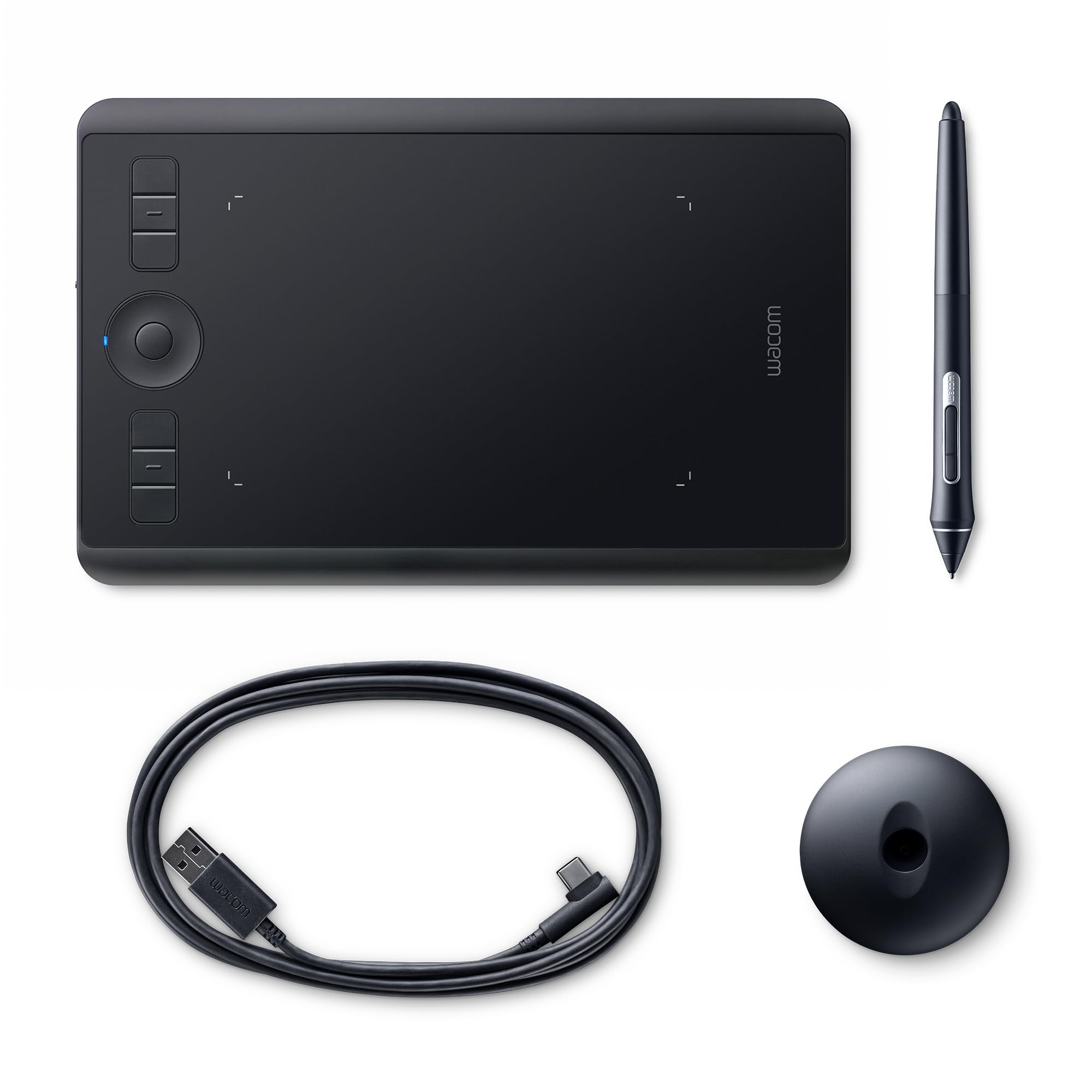
The Wacom Tablet Pro is not a stand alone tablet with a screen. It is more of a track pad extender or electronic canvas. The Wacom Tablet Pro does not come with a manual, which I found to be very frustrating trying to use a new device. I would rather have a long thick page booklet in front of me than have to hunt on the internet to try and learn how to use a device. Both the Wacom pen and the tablet are suitable for left or right handed users. The Wacom Tablet Pro weighs 1 pound & 9.8 ounces. The Wacom pen weighs 0.5 ounces. The Wacom Tablet Pro is Windows or Mac compatible and must be connected by bluetooth or with the included usb cable and utilized with another device (i.e. desktop/laptop) or any other preferred software (i.e. photoshop). Before using the Wacom ... MoreThe Wacom Tablet Pro is not a stand alone tablet with a screen. It is more of a track pad extender or electronic canvas. The Wacom Tablet Pro does not come with a manual, which I found to be very frustrating trying to use a new device. I would rather have a long thick page booklet in front of me than have to hunt on the internet to try and learn how to use a device. Both the Wacom pen and the tablet are suitable for left or right handed users. The Wacom Tablet Pro weighs 1 pound & 9.8 ounces. The Wacom pen weighs 0.5 ounces. The Wacom Tablet Pro is Windows or Mac compatible and must be connected by bluetooth or with the included usb cable and utilized with another device (i.e. desktop/laptop) or any other preferred software (i.e. photoshop). Before using the Wacom Tablet Pro, drivers and utility software must be downloaded and installed for setup on your device found on the Wacom website. The tablet has two rubberized strips on the bottom to prevent slipping. The track pad area shown by four white corners on the Wacom Tablet Pro is a whopping 8 & 3/4" x 5 & 3/4". This working area gets transposed onto your device screen. To get a handle on the comparison, on the laptop device I am using now the track pad is only 4" x 2 & 1/4". The Wacom Tablet Pro is freedom to roam. No more running out of space. There are 8 express keys located on the top side of the tablet for customization along with one touch ring with four programmable settings. There is a toggle on the side of the tablet that controls the track pad. If you toggle it, its full capabilities are controlled only by the Wacom pen. The Wacom pen has a comfortable ergonomic feel with a rubberized grip. There are two buttons on the pen for customization. In addition, the pen has 8,192 pressure levels for every variety of strokes. The pen stand has 10 extra nibs hidden inside. To access them the base is unscrewed, which I found was not always the easiest thing to do. The hole in the underside of the base also acts as a nib replacement tool. I found the Wacom pen to be a welcome alternative to a mouse's limited capabilities of feel & preciseness along with the ergonomics that fall short in using a mouse. The multitude of Wacom track pad & Wacom pen customization are set up in Wacom properties and will vary depending on your own specific preferences. Create your reality, with this Wacom Tablet Pro the possibilities are endless!
Let me first say that this is my first ever digital graphic drawling tablet. The packaging that the Wacom Intuos Pro Digital Graphic Drawing Tablet is beautiful with various colorful birds perched on a tree. The contents inside are also packaged well too. There is a booklet included with diagrams of what is included and the website to download the necessary driver for this tablet to work. The driver downloaded without a hitch. As this being my first digital drawling tablet, I didn't know how to use this. There was no booklet included with the device. I did a little research and was able to watch a few videos online. I do wish there was at least a QR code that can be scanned on how to use this tablet. Once I had figured out how to use the drawling digital tablet, it ... MoreLet me first say that this is my first ever digital graphic drawling tablet. The packaging that the Wacom Intuos Pro Digital Graphic Drawing Tablet is beautiful with various colorful birds perched on a tree. The contents inside are also packaged well too. There is a booklet included with diagrams of what is included and the website to download the necessary driver for this tablet to work. The driver downloaded without a hitch. As this being my first digital drawling tablet, I didn't know how to use this. There was no booklet included with the device. I did a little research and was able to watch a few videos online. I do wish there was at least a QR code that can be scanned on how to use this tablet. Once I had figured out how to use the drawling digital tablet, it was a lot of fun. I am still learning as I go and my daughter is wanting to also use this for drawling. She is quite creative and imaginative. There are a lot of settings to play with to get the adjustments you need for your on personal style and touch. There are eight side buttons on the drawling tablet and also you can change the settings from the app. The coolest feature that I really did is the digital pen holder! The holder unscrews to reveal 10 additional stylus tips! The removal of the tip in the pen is simple as there is a tiny pin size hole. Place the stylus pen tip in the hole and it comes out. *****I did receive this product complimentary in exchange for my honest opinion.*****
Unboxing: My first impression of the outer packaging was that it looked very neat and professional. I like to keep boxes so it's a plus that I did not have to destroy any of the outer packaging. Which was in two parts. A thin paper box that needed to be opened via a side flap, and a thicker white hard box that opened up after separating some velcro. The tablet itself is the first thing you see when you open the box up. It came wrapped in a protective plastic. When removed the actual screen had more of a paper feel to it than one of glass. Which I personally consider to be a plus when working with any digital tablets, but it is more of a personal preference. When the tablet is lifted out you finally get a good look at the cable, pen/nib holder, and of course the pen ... MoreUnboxing: My first impression of the outer packaging was that it looked very neat and professional. I like to keep boxes so it's a plus that I did not have to destroy any of the outer packaging. Which was in two parts. A thin paper box that needed to be opened via a side flap, and a thicker white hard box that opened up after separating some velcro. The tablet itself is the first thing you see when you open the box up. It came wrapped in a protective plastic. When removed the actual screen had more of a paper feel to it than one of glass. Which I personally consider to be a plus when working with any digital tablets, but it is more of a personal preference. When the tablet is lifted out you finally get a good look at the cable, pen/nib holder, and of course the pen itself. This particular model came with the Wacom Pro Pen 2. And I have to say that I was very impressed with the quality of the materials these accessories were made out of. They feel like they have substance to them. Set Up: Right out of the Gate I would say that this tablet is not super beginner friendly. It came with some laughably small instruction manuals. Where the only directions you have are given in vague pictures. And the only actually useful information it gives is where the replacement nibs are and how to change them out. The other stuff is basic, where to plug cords in, and warnings. Such as it not being water or drop resistant. The last little bit of information it provides is to go to a website for installing the proper drivers . Finding the drivers was pretty straightforward, but I had previous experience though. I ended up finding it on a product information screen and then scrolling down a bit for driver information. Installation was simple, and it did require a full computer restart to finalize the installation of the required program. Right about now, as I was attempting to use the tablet pen to look through the settings. I noticed that the tablet had not come with an artist's glove, and also got first hand experience with the tablet's touch screen capabilities! I usually rest my hand on the screen when using digital art pens. So I noticed that sometimes the tablet was struggling to differentiate the movements of the pen, and the movements of my hand changing resting positions on the screen. Which I ended up resolving myself by turning off the touch screen. I also wish that there was more information available about the tablet settings before you got to the point of being able to customize them. There are quite a few settings to look through but it really looks like everything can be fine tuned to any specific person's needs. From the gestures, to the functionality of all the hot keys. And even the buttons on the Pro Pen 2. Actual Tablet Use: I drew up some base lineart from a simple sketch in a free digital art program called Krita, that I was already familiar with. I haven't had a lot of time to finalize the settings the way I want to. So I can't say too much here but the gesture zoom in and zoom out is really a fantastic addition to any digital artist's arsenal. I wish all tablets had it. It's really a time saver. It took a while to adjust to moving a pen around on the tablet, but having to look at my computer screen to see what I was doing. But it is doable. I found it easier to think about it like a mouse on a mousepad, instead thinking about it like using a real pen to draw? If that makes any sense. Anyway, the pen movements felt very fluid. And overall the tablet feels like it would be worth the asking price.
Loving the Wacom Intuos Pro graphics drawing tablet (PTH660), the latest in a long succession of Wacom Intuos tablets. It comes with the new Wacom Pro Pen 2, a more sensitive and responsive upgrade. With this version, the pen is lighter and battery-free. The pen tips are replaceable and you get 6 standard nibs and 4 felt nibs along with a pen stand. Another upgrade is the tablet itself, it's battery free, has 8,192 levels of pressure sensitivity (up from 2048), tilt-response and has lag-free tracking. There are two switches in front to customize shortcuts for access. The extra cost Bluetooth option from previous Intuos Pro tablets now comes standard along with a wired USB connection. The addition of Bluetooth makes connections easier. The new Intuos Pro looks a lot ... MoreLoving the Wacom Intuos Pro graphics drawing tablet (PTH660), the latest in a long succession of Wacom Intuos tablets. It comes with the new Wacom Pro Pen 2, a more sensitive and responsive upgrade. With this version, the pen is lighter and battery-free. The pen tips are replaceable and you get 6 standard nibs and 4 felt nibs along with a pen stand. Another upgrade is the tablet itself, it's battery free, has 8,192 levels of pressure sensitivity (up from 2048), tilt-response and has lag-free tracking. There are two switches in front to customize shortcuts for access. The extra cost Bluetooth option from previous Intuos Pro tablets now comes standard along with a wired USB connection. The addition of Bluetooth makes connections easier. The new Intuos Pro looks a lot like the previous model except that it takes up less space and is a bit thinner. There is also a new USB-C connector wire for faster charging, and it’s at a right angle that helps keep it flush with the tablet. Uniquely, the Intuos’ replaceable Texture Sheet drawing surface has a slightly rough surface that mimics the feel of paper. And Wacom has included a row "ExpressKeys". There are eight ExpressKeys buttons set vertically that can be made to do almost anything you want to program them to do. A Touch Ring with a center Toggle button divides the ExpressKeys into two sets of four each. In paint programs like Photoshop, the ring can be used to rotate, increase/decrease brush sizes and other functions with variable settings. Pressing the center Toggle button switches between the outer ring functions. Another feature of the Intuos Pro tablet is Multi-Touch. This turns the Intuos tablet into a trackpad. All these features and functions make the Wacom Intuos Pro a big PRO with no CONS, except perhaps the learning curve, and I recommend it. If only an Adobe Photoshop license came included for free....
My 13yr old son loves his tablet and it is perfect for his needs. As long as you understand that YOU NEED TO CONNECT IT TO A COMPUTER FOR IT TO WORK then you'll be sweet as. Fortunately this was explained to me before I bought it. Connect the tablet to the old laptop and the laptop to a monitor and you have a big screen, A2/A3 drawing experience. Works with his Chromebook OS as well, but check on the Wacom site what series Chromebook are compatible before buying. Will work with Windows and Apple pretty seamlessly I imagine. It really is plug it in, download a drawing software program and away you go. Hours of endless, creative fun.Chromebook doesn't support Windows obviously so you can't use a lot of the flasher (and expensive) drawing software programs (like the ... MoreMy 13yr old son loves his tablet and it is perfect for his needs. As long as you understand that YOU NEED TO CONNECT IT TO A COMPUTER FOR IT TO WORK then you'll be sweet as. Fortunately this was explained to me before I bought it. Connect the tablet to the old laptop and the laptop to a monitor and you have a big screen, A2/A3 drawing experience. Works with his Chromebook OS as well, but check on the Wacom site what series Chromebook are compatible before buying. Will work with Windows and Apple pretty seamlessly I imagine. It really is plug it in, download a drawing software program and away you go. Hours of endless, creative fun.Chromebook doesn't support Windows obviously so you can't use a lot of the flasher (and expensive) drawing software programs (like the ones that come with it) but you don't need most of those anyway and there are plenty of cheap or free software packages available for the budding artist to try out. The pen is awesome-entry level but more than adequate and easily upgradable. For the price and to discover whether you really like it, I reckon it's a great system. Thanks Harvey Norman for being knowledgeable (and honest) about the product and saving me a lot of money not buying a new generation iPad (Not that there is anything wrong with those either, but they are way expensive). We have what we need for a third or less of the cost. Thanks Wacom! I feel like we will move up the specs of these tablets and pens as my son's artistic talents expand.
| General | |
| Device Type | Digitiser |
| Orientation | Right and left-handed |
| Width | 33.8 cm |
| Depth | 21.9 cm |

